3. Simulation Ensembles
Once the uncertainty bounds have been determined for our simulation parameters, we can start creating our workflow for our simulation ensembles using one of the orchestration tools in WEAVE.
How Many Simulations to Run?
You can run as many simulations as you would like but the good computational scientist should always consider the computational expenses of their jobs as they relate to time and storage. For instance, consider running millions of simulations that take 1 minute each or hundreds of simulations that take 1 day each. It would not be feasible to run these jobs in a timely fashion. You also have to consider the convergence of QoIs for post-processing the data. For example, you can choose 1024 simulations so you can break the convergence of QoIs into recursive steps: 1, 2, 4, 8, 16, 32, 64, 128, 256, 512, and 1024.
Workflow
The worklow files for the different orchestration tools can be seen below. Notice that Merlin is very similar to Maestro as it extends Maestro. Feel free to run these spec files with the bash commands provided for each orchestration tool in the following sections, but beware that this step in the tutorial is ONLY showing how to run simulation ensembles and nothing more.
Maestro & Merlin
Both the Maestro and Merlin YAML specs have several blocks in their spec files that can be read about in more detail in their respective documentation. In this example, for both Maestro and Merlin, we'll need three of these blocks: description, env, and study.
The description block is required by all Maestro and Merlin studies and gives a high level overview of what the study is about. The only two fields in this block are name and description, which are both required.
The env block defines variables that can be used throughout the spec file. In this step we'll add two variables to the env block: OUTPUT_PATH and SIM_SCRIPT_PATH. The OUTPUT_PATH variable is a reserved variable in Maestro and Merlin representing the directory path that the study output will be written to. The SIM_SCRIPT_PATH variable is a path to our simulation script ball_bounce.py that will run our family of simulations. You'll also notice a reference to another reserved variable called SPECROOT which gives the root path of the spec file. This is very useful when trying to adjust the paths for loading and saving files since each study has its own path. The other variables that will be used in this step of the tutorial are loaded in from the PGEN script.
The study block contains each step in the study. The required fields for this block are name, description, and run. Within the run section it's required to have a cmd field. We only have one step here run-ball-bounce which runs the simulation ensemble. We will be adding more steps in the later sections.
From here, the specs start to differ slightly. If you're using Maestro read the Maestro Specification section and if you're using Merlin see the Merlin Specification section.
Maestro Specification
As was stated above, this example is ONLY showing how to run simulation ensembles and nothing more using Maestro. In the bash command below, we call our Maestro Spec after the run argument and the PGEN script we created in the previous section using the --pgen option. The data that's generated will be located in 03_simulation_ensembles/data.
Bash Command:
maestro run 03_simulation_ensembles/ball_bounce_suite_maestro_simulation_ensembles.yaml --pgen 02_uncertainty_bounds/pgen_ensembles.py
Meastro Spec:
description:
    name: ball-bounce
    description: A workflow that simulates a ball bouncing in a box over several input sets.

env:
    variables:
        OUTPUT_PATH: ./03_simulation_ensembles/data
        SIM_SCRIPT_PATH: ../ball_bounce.py

study:
    - name: run-ball-bounce
      description: Run a family of simulations of a ball in a box.
      run:
          cmd: |
            python $(SPECROOT)/$(SIM_SCRIPT_PATH) output.dsv $(X_POS_INITIAL) $(Y_POS_INITIAL) $(Z_POS_INITIAL) $(X_VEL_INITIAL) $(Y_VEL_INITIAL) $(Z_VEL_INITIAL) $(GRAVITY) $(BOX_SIDE_LENGTH) $(GROUP_ID) $(RUN_ID)
Merlin Specification
Note
For this step in the tutorial, with Merlin you can run either the Maestro spec defined in the section above or the Merlin spec defined below. Either will work but the Merlin-specific spec has certain additions to improve run times.
As was stated above, this example is ONLY showing how to run simulation ensembles via Merlin and nothing more.
Creating the Merlin Spec
As you may have already noticed, Maestro and Merlin have a lot of commonality in their spec files (e.g. the description, env, and study blocks). In this section, we'll go over some additions to the Merlin file that separate it from Maestro: the user block and the merlin block.
The user block provides a location to define YAML anchors that allow other variables in the workflow file to be propogated through to the workflow. In this example we create a YAML anchor called run_ball_bounce that contains a command to run a family of simulations of a ball bouncing and the maximum number of times we should retry this command if it fails. We'll use this YAML anchor in the study section to help us define our run-ball-bounce step.
The merlin block is where you can define sample generation and delegate resources for different workers (we won't be needing the samples section for this demonstration so it's been omitted). In this example we specify that we want to create a worker called ball_bounce_worker that works on the step called run-ball-bounce that we defined in the study block. Additionally, we provide the worker with some arguments: -l INFO, --concurrency 4, --prefetch-multiplier 2, and -O fair (all argument options can be found here). The -l INFO argument sets the log level of the workers to be INFO, --concurrency 4 tells Merlin to spawn 4 child processes via Celery to help process the simulations more efficiently, --prefetch-multiplier 2 tells Celery to grab 2 tasks at a time for each worker, and -O fair sets the optimization level to be fair.
Merlin Spec:
description:
    name: ball-bounce
    description: A workflow that simulates a ball bouncing in a box over several input sets.

env:
    variables:
        OUTPUT_PATH: ./03_simulation_ensembles/data
        SIM_SCRIPT_PATH: ../ball_bounce.py

user:
    study:
        run:
            run_ball_bounce: &run_ball_bounce
                cmd: |
                  python $(SPECROOT)/$(SIM_SCRIPT_PATH) output.dsv $(X_POS_INITIAL) $(Y_POS_INITIAL) $(Z_POS_INITIAL) $(X_VEL_INITIAL) $(Y_VEL_INITIAL) $(Z_VEL_INITIAL) $(GRAVITY) $(BOX_SIDE_LENGTH) $(GROUP_ID) $(RUN_ID)
                max_retries: 1

study:
    - name: run-ball-bounce
      description: Run a family of simulations of a ball in a box.
      run:
          <<: *run_ball_bounce

merlin:
    resources:
        task_server: celery
        overlap: False
        workers:
            ball_bounce_worker:
                args: -l INFO --concurrency 4 --prefetch-multiplier 2 -O fair
                steps: [run-ball-bounce]
Running the Merlin Spec
Important
To be able to use Merlin in a distributed environment (not locally), you first need to make sure you've set up your merlin config file (app.yaml). See Merlin's confluence page and the Merlin configuration docs for more information.
Unlike Maestro, Merlin provides the ability to customize workers individually. This allows for increases in performance by specializing workers for certain tasks. However, this also results in a slightly more complicated study-launching process than Maestro. Let's take a look at Merlin's workflow diagram to see what we mean:
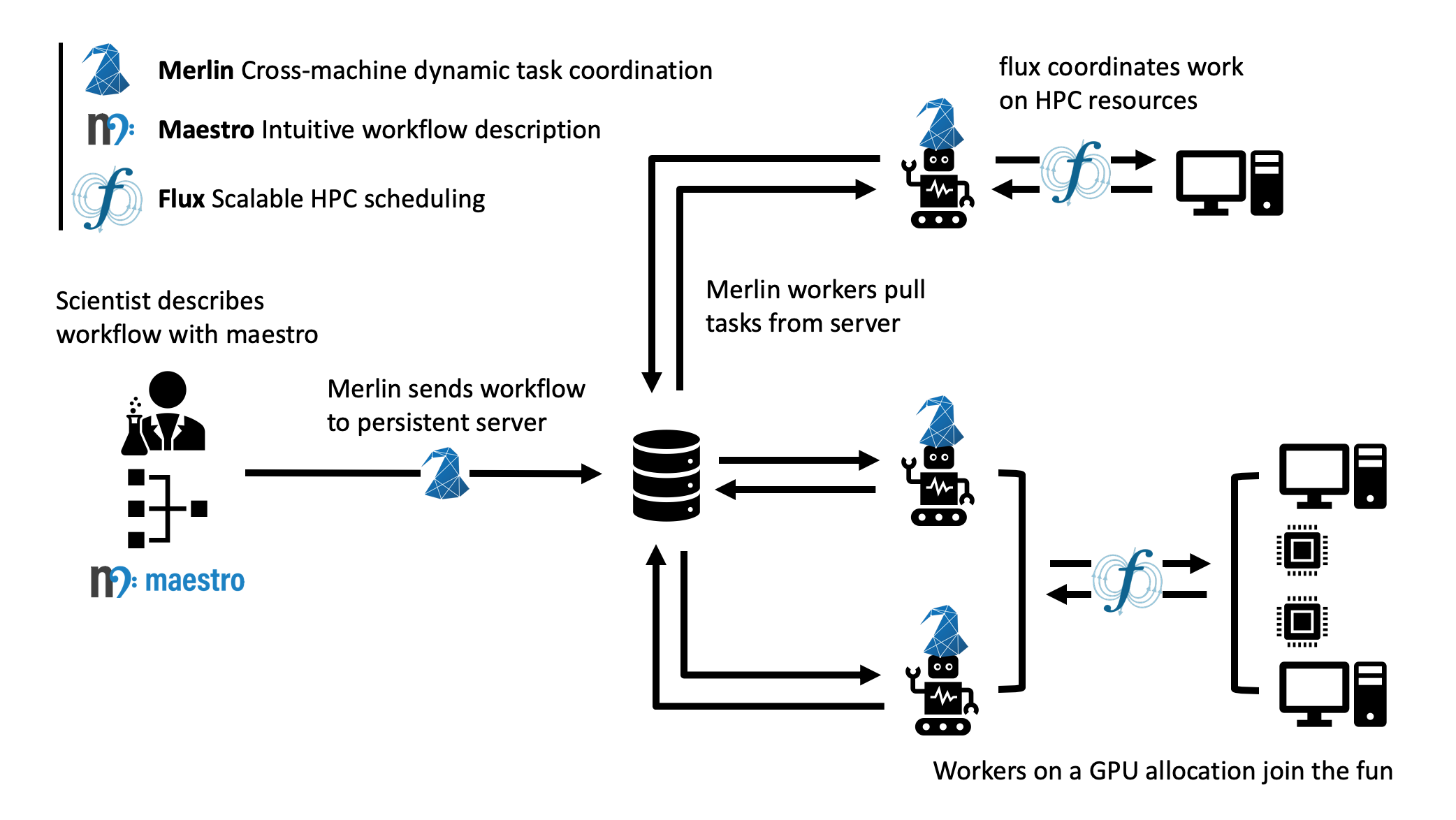
From here, we can see that Merlin relies on the user to send a workflow to the server which creates tasks. It also relies on workers to complete those tasks. This may seem like only two steps, creating the tasks and completing them, but we also need to consider what happens to the workers once all the tasks are done being processed. In short, they'll stay up and running, listening for more tasks to complete until we tell them it's ok to stop. Therefore, running a Merlin study can be broken down into three distinct steps:
- Launching the tasks
- Launching the workers
- Stopping the workers
To launch the tasks, we'll use the merlin run bash command. This will stage our tasks on the central server and put them in a queue for workers to process. For this example, we call our Merlin Spec after the run argument and provide it the PGEN script we created in step 2 using the --pgen option.
Launching the tasks:
merlin run 03_simulation_ensembles/ball_bounce_suite_merlin_simulation_ensembles.yaml --pgen 02_uncertainty_bounds/pgen_ensembles.py
To launch the workers, we'll use the merlin run-workers bash command. This will launch the workers who will pull work from the task queue that we just created and complete the tasks. In order to specify how to set up the workers we need to provide the run-workers command with the Merlin Spec it should be launching workers for.
Launching the workers:
Once the run-ball-bounce step has completed the data will be located in 03_simulation_ensembles/data. We can now stop the workers so that they don't continue listening for tasks using the merlin stop-workers bash command.
Stopping the workers: